 Armand Halbert
Software Engineer
Contact:
armand.halbert@gmail.com
Armand Halbert
Software Engineer
Contact:
armand.halbert@gmail.com
Vim + Markdown = Writer's Heaven
I use Jekyll, Markdown and Vim to write content for my blog. Rather than wrestling with a full-fledged CMS or writing raw HTML, I can use a human readable markup language to write my posts. Vim is my editor of choice, and while I like the friendliness of GUI markdown tools, I miss my shortcuts, autocomplete and plugins in vim. Having a minimalistic text editor gives me an environment that is distraction free, version controlled and easy to publish. This article will go into how to set up vim to effectively edit Markdown with these features:
- Spelling
- English Auto-Completion
- Auto-Formatting
- Grammar Checking
Some notes before we begin:
- I use vim-plug to manage my plugins, and this guide assumes you do too.
- There are two .vimrc files used here:
~/.vimrcand~/.vim/after/ftplugin/markdown.vim, which is a file that runs only after~/.vimrcis loaded and a markdown file is detected.
The Basics
Vanilla vim itself comes with a lot of markdown support, such as frontmatter highlighting and spelling.
~/.vim/after/ftplugin/markdown.vim
" Disable line numbers
setlocal nonumber
I never found much value in line numbers when writing, so I turned them off specifically for Markdown.
Spelling
~/.vim/after/ftplugin/markdown.vim
" Turn spellcheck on
setlocal spell
nnoremap zs 1z=
" Disable check for sentence capitalization
setlocal spellcapcheck=
Vim has a very effective spellchecking system that you can enable with
set spell, and a few keystrokes that make correcting your spelling easy. z=
brings up a list of possible corrections, while 1z= picks the most likely one.
I remapped it to zs to make it easy to correct spelling. If it’s a word vim
doesn’t recognize, you can use zg to add it to the dictionary.
spellcapcheck is a feature that detects if you forgot to capitalize the
beginning of a sentence. Unfortunately, it is just a regular expression, so if
you write something like “vs.” it will decide that you forgot to capitalize the
next word and highlight it. You can disable it by emptying the regex, as I did
with setlocal spellcapcheck= .
vim-markdown
Vim-markdown,
preservim/vim-markdown is a
plugin that provides several nice features, such as:
- Folding
- Highlighting of fenced code blocks
- Highlighting of front matter
and some useful commands like:
:Toc— Create a table of contents in the quickfix list:InsertToc— insert a table of contents into the buffer:SetexToAtx,:HeaderDecrease,:HeaderIncrease
~/.vimrc
Plug 'preservim/vim-markdown'
" Enable folding.
let g:vim_markdown_folding_disabled = 0

" Fold heading in with the contents.
let g:vim_markdown_folding_style_pythonic = 1

" Don't use the shipped key bindings.
let g:vim_markdown_no_default_key_mappings = 1

" Filetype names and aliases for fenced code blocks.
let g:vim_markdown_fenced_languages = ['php', 'py=python', 'js=javascript', 'bash=sh', 'viml=vim']

" Highlight front matter (useful for Jekyll/Hugo posts).
let g:vim_markdown_toml_frontmatter = 1
let g:vim_markdown_frontmatter = 1
let g:vim_markdown_json_frontmatter = 1
An explanation of the settings:
vim_markdown_folding_disabledis set to0to enable folding, which lets you collapse sections of your document under their headings. To understand folding behavior, see:help folding.vim_markdown_folding_style_pythonicchanges the fold behavior so that the heading line itself stays visible when folded, rather than being hidden with the rest of the section.vim_markdown_no_default_key_mappingsdisables the plugin’s built-in key mappings, letting you define your own without conflicts.vim_markdown_fenced_languagesdefines a list of language names and aliases for syntax highlighting inside fenced code blocks, so that e.g. a block taggedbashgets highlighted assh.vim_markdown_frontmatter,vim_markdown_toml_frontmatter, andvim_markdown_json_frontmatterenable syntax highlighting for YAML, TOML, and JSON front matter respectively, which is useful if you write Jekyll or Hugo posts.
Completion
Why type each word by hand when you can tab-complete it? I use the plugin
girishji/vimcomplete and its
companion,
girishji/ngram-complete.vim
to provide auto-completion for English.
~/.vimrc
Plug 'girishji/vimcomplete'
let g:vimcomplete_tab_enable = 1
Plug 'girishji/ngram-complete.vim'
let vimcompleteoptions = {
      \ 'buffer': {
      \     'enable': v:true,
      \     'priority': 2
      \  },
      \  'ngram': {
      \     'enable': v:true,
      \     'priority': 1,
      \     'filetypes': ['markdown'],
      \     'bigram': v:true,
      \  },
      \}
autocmd VimEnter * call g:VimCompleteOptionsSet(vimcompleteoptions)
priority determines which completions show up first in the completion menu,
with larger numbers == higher priority.
ngram-complete.vim allows for completion based on the frequency of words,
making it much more useful than standard dictionary completion, which picks
words in alphabetical order. The bigram option allows completion based on
frequency of words given the previous word rather than just the frequency of the
current word you are completing.
Auto-formatting
~/.vimrc
Plug 'dense-analysis/ale'

let g:ale_fixers = {
    \ 'markdown': ['prettier']
    \}
The ale plugin (Asynchronous Lint
Engine) allows auto-formatting and linting in vim, running external tools
asynchronously so they don’t block your editing. With the configuration above,
you can run :ALEFix to format the current file, or add the following to have
it format on save:
~/.vimrc
let g:ale_fix_on_save = 1
Prettier
I use prettier to auto-format my markdown
files so that they are easy to read.
~/.prettierrc.yaml
overrides:
  - files:
      - "*.md"
      - "*.markdown"
    options:
      proseWrap: "always"
proseWrap automatically wraps lines into 80 character columns. Be careful when
enabling it if you haven’t started your post with it, as it can create large
diffs.
Linting
The ale plugin enables automatic linting of your posts on save. While I don’t use the lint features personally, I will guide you on how to set them up in case you find them useful.
Markdown-lint
Markdown-lint highlights common issues with Markdown files. You can install it with
npm install -g markdownlint-cli
Set it up with a .markdownlint.yaml file.
.markdownlint.yaml
# Enable all rules by default
# https://github.com/markdownlint/markdownlint/blob/main/docs/RULES.md
default: true

# Allow inline HTML which is useful in Github-flavour markdown for:
# - crafting headings with friendly hash fragments.
# - adding collapsible sections with <details> and <summary>.
MD033: false

# Ignore line length rules (as Prettier handles this).
MD013: false
~/.vimrc
let g:ale_linters = {
    \ 'markdown': ['markdownlint']
    \}
Vale
Vale is a command-line tool that brings code-like linting to prose. It is not a grammar checker. You can find it here.
I did find it took a bit of effort to install and get working. Here’s a guide for what I did:
- Install Vale. You can find instructions here
- Create a
~/.vale.inifile
# Where the styles are kept.
StylesPath = .vale
Packages = write-good, proselint

MinAlertLevel = suggestion

# Where to look for local vocabulary files.
Vocab = Local

# Define which styles to use for Markdown.
[*.{md,markdown,txt}]
BasedOnStyles = Vale, write-good, proselint

[*]
BasedOnStyles = Vale

# Disable any rules that are more annoying than useful
write-good.E-Prime  = NO
-
Create the folder
~/.vale -
Run
vale sync -
Create the folder
~/.vale/configand~/.vale/config/vocabularies/Local -
Create the files
~/.vale/config/vocabularies/Local/accept.txtand~/.vale/config/vocabularies/Local/reject.txt
Once you’ve completed these instructions, you can change your ~/.vimrc as
follows:
~/.vimrc
let g:ale_linters = {
    \ 'markdown': ['vale', 'markdownlint']
    \}
Harper
However, I found the above linters didn’t highlight anything useful, and were
more an annoyance than anything else. I next turned to
harper, which is not supported by ALE,
so I had to build in support for it.
You can find instructions on how to install Harper here
~/.vimrc
Plug 'dense-analysis/ale'
let g:ale_linters = {
    \ 'markdown': ['harper']
    \}
let g:ale_markdown_harper_config = {
\   'harper-ls': {
\       'diagnosticSeverity': 'warning',
\       'dialect': 'American',
\       'linters': {
\           'SpellCheck': v:false,
\           'SentenceCapitalization': v:true,
\           'RepeatedWords': v:true,
\           'LongSentences': v:true,
\           'AnA': v:true,
\           'Spaces': v:true,
\           'SpelledNumbers': v:false,
\           'WrongQuotes': v:false,
\       },
\   },
\}
Grammar Checking
While Harper was more sophisticated than the linters above, none of the above
tools really worked for me. I wanted a more sophisticated grammar checker for my
writing. I thought an LLM was ideally suited to this task, so I built my own
plugin ahalbert/vim-gramaculate
to check my grammar.
Plug 'ahalbert/vim-gramaculate'
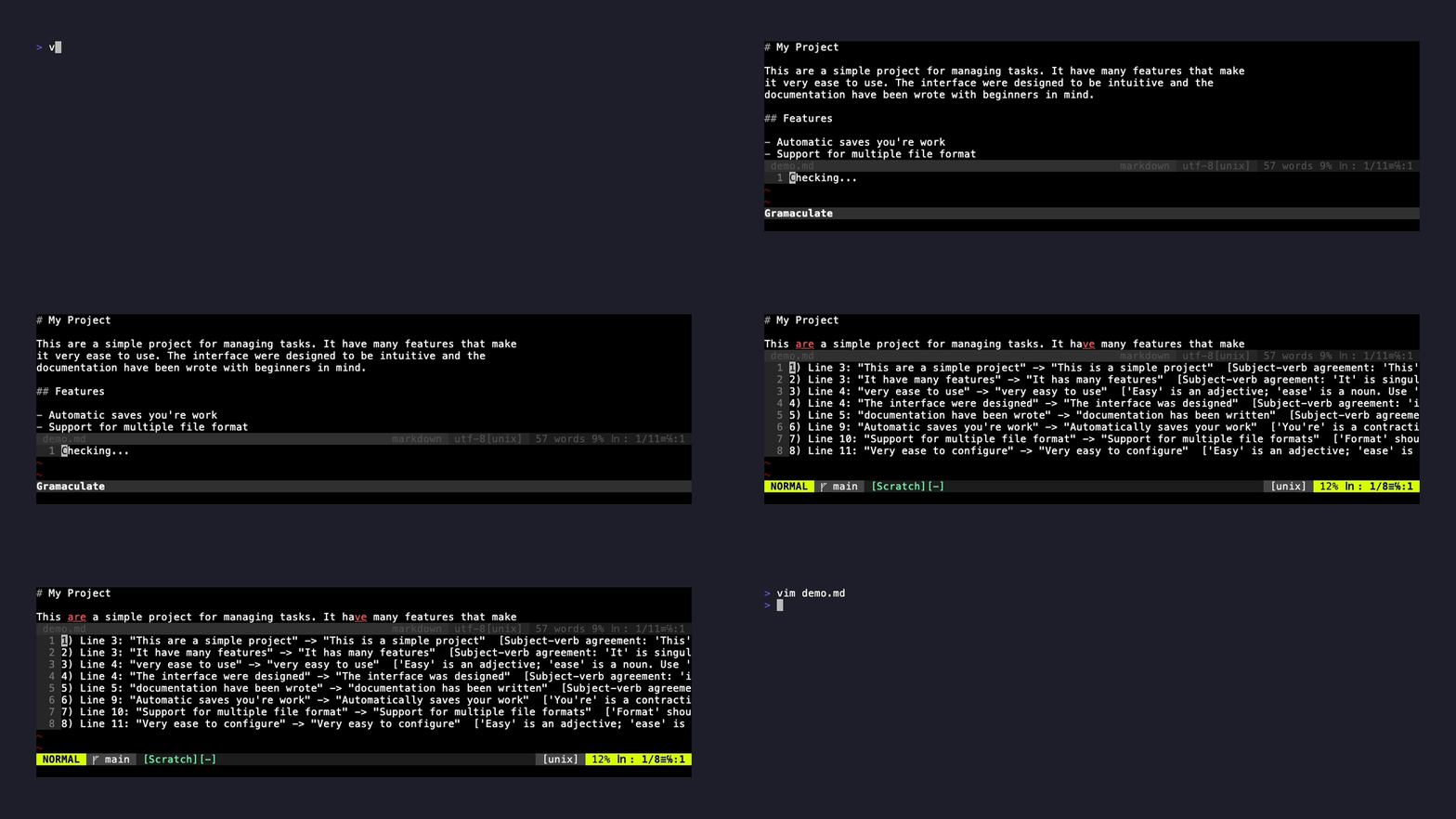
You can then use :Gramaculate to check your grammar. By default, this uses a
local model with Ollama, but you can
read the docs
to configure it with any model you want, local or remote.
Writer’s Heaven
I find writing with vim a breeze once I got this all set up, and I hope this guide helps you do the same. Between spellcheck, auto-completion, formatting and grammar checking, vim becomes a surprisingly capable writing environment that stays out of your way and lets you focus on the words. If you have any suggestions for other plugins or workflows, feel free to reach out.